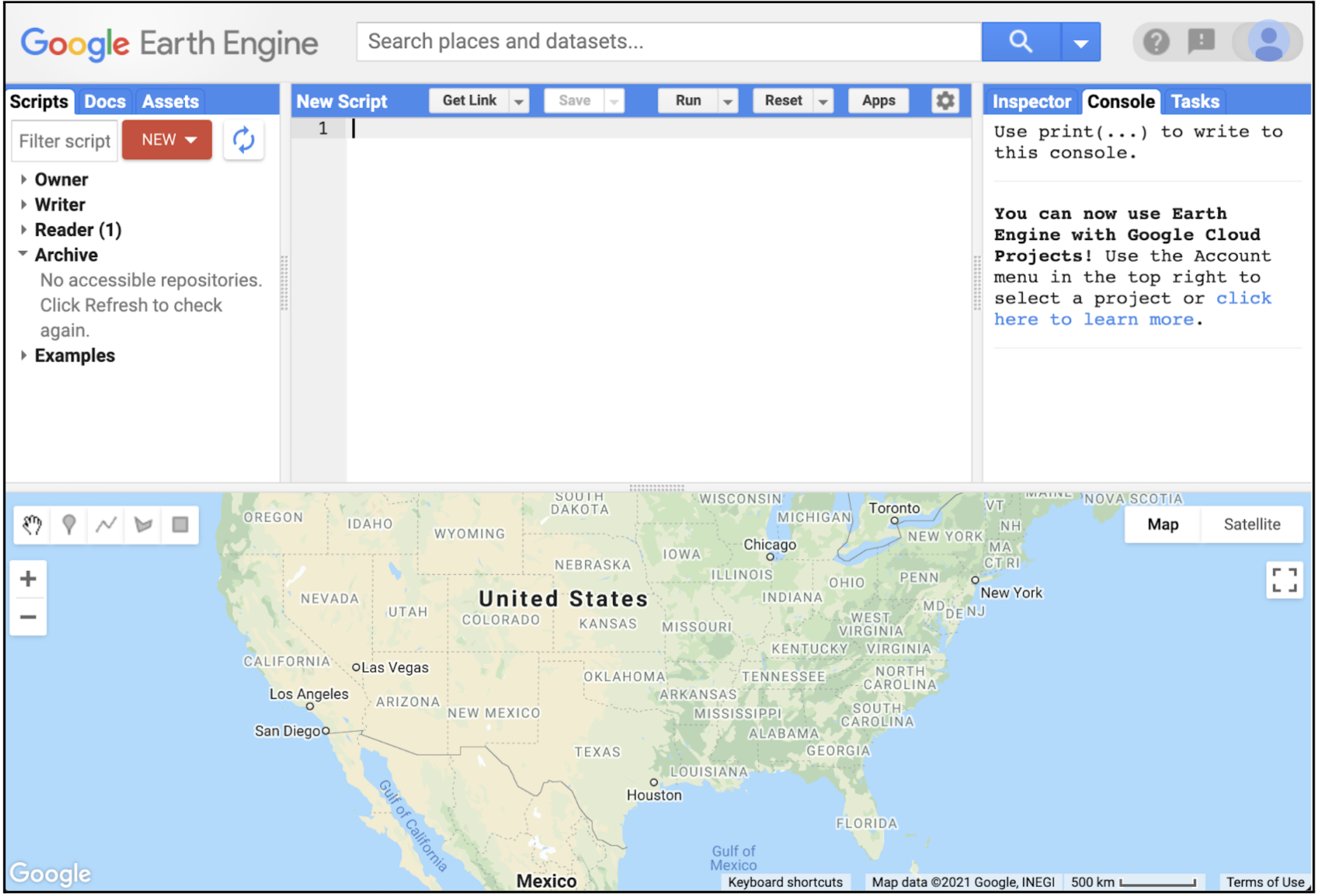
Let's talk about why we use JavaScript in this course. JavaScript is the fastest on-ramp to Google Earth Engine. The in-browser Code Editor gives us a ready-to-use IDE, console, map, docs, and sharing with zero installs. You only need basic JavaScript to be productive - the API handles the heavy lifting.
Learning objectives
- Explain why this course starts with the JavaScript API.
- Use the Code Editor for rapid, shareable prototyping.
- Run and tweak a short JavaScript script with confidence.
- Decide when to stay in JavaScript versus move to Python.
Why it matters
Quick learning loops beat long setup. JavaScript in the Code Editor lets you test ideas, visualize results, and share links in minutes, so we can focus on questions, not configuration.
What makes JavaScript the best first stop?
- Zero install: Open a browser, sign in, and run code - no local packages.
- Immediate feedback: Map updates and console prints keep iterations fast.
- Shareable by default: "Get link" preserves script, imports, and map view.
- UI toolkit included: Build simple interfaces and charts without extra libraries.
Pro tips
- Use
print()early and often to inspect server objects. - Keep ROIs small while prototyping; expand once results look right.
- Stay inside the Docs tab for API references and copy-paste examples.
Quick win: run this in the Code Editor
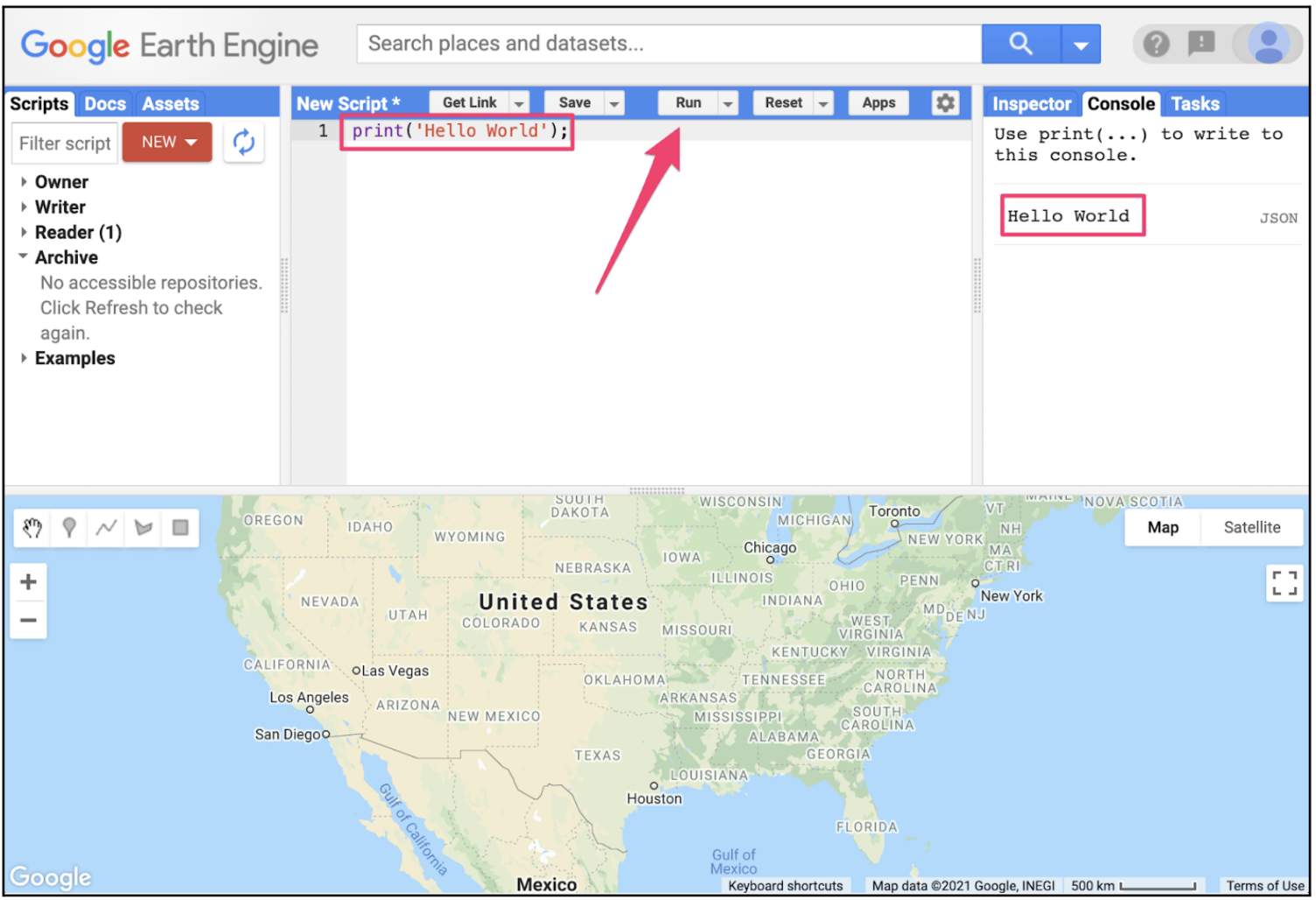
Paste into a new script, hit Run, and explore the map and console.
// Hello, Earth Engine (JavaScript Code Editor)
var pt = ee.Geometry.Point([-122.45, 37.75]).buffer(2000);
var col = ee.ImageCollection('LANDSAT/LC08/C02/T1_L2')
  .filterBounds(pt)
  .filterDate('2021-06-01', '2021-07-01');
var img = col.first()
  .select(['SR_B5', 'SR_B4', 'SR_B3'], ['NIR', 'RED', 'GREEN'])
  .multiply(0.0000275).add(-0.2); // apply scale/offset
Map.centerObject(pt, 10);
Map.addLayer(img, {bands: ['NIR', 'RED', 'GREEN'], min: 0, max: 0.4}, 'False color');
print('Image date', ee.Date(img.get('system:time_start')).format('YYYY-MM-dd'));
What we should see
A false-color composite centered on San Francisco and a console print with the image date.
Try it: small changes, fast learning
Change the point to your hometown coordinates and re-run.
Swap the collection to 'COPERNICUS/S2_SR' and adjust bands to ['B8', 'B4', 'B3'].
Add a simple NDVI: var ndvi = img.normalizedDifference(['NIR','RED']); Map.addLayer(ndvi, {min:0, max:0.8, palette:['brown','yellow','green']}, 'NDVI');
Key vocabulary
- Code Editor
- In-browser IDE for Earth Engine JavaScript with map, console, tasks, and docs panels.
- Map
- Global map object in the Code Editor used to center, add layers, and adjust visualization.
- Share link
- A URL that preserves our script, imports, and map state so others can reproduce results.
Common mistakes
- Using client-side
forloops instead of server-sidemap()on collections. - Calling
.getInfo()on large objects, causing huge downloads - preferprint(). - Forgetting to apply scale/offset to Level-2 Landsat data before computing indices.
Quick self-check
- Why is JavaScript the fastest on-ramp for Earth Engine?
- What does clicking "Get link" enable when collaborating?
- When would you switch to Python instead of JavaScript?
When to use Python instead
- Integrating Earth Engine with local data science stacks (NumPy/Pandas/GeoPandas).
- Automating pipelines, tests, or scheduled jobs.
- Building larger applications or services outside the browser.
Where to go next
- Read the Code Editor guide for hotkeys and sharing.
- Browse the API Docs inside the Editor for examples.
- Practice by turning the quick win into a shareable link and posting it to a peer for feedback.
Going Deeper: EEFA Book
This module gives us the foundation. To explore further, see Chapter F1.0 (JavaScript and the Earth Engine API) in the Cloud-Based Remote Sensing with Google Earth Engine (EEFA Book).